The best 4K monitor is not the one with the highest refresh rate, the most expensive panel, or the longest feature list. It is the one whose sharpness, connectivity, and performance match the way you actually work and play.
For most people, the Dell S2725QC is the practical starting point. It is a 27-inch 4K IPS monitor with a 120Hz refresh rate. Its USB-C connection carries video, data, and up to 65W of laptop charging. The Dell S2725QS is the simpler choice if you do not need USB-C. The ASUS ROG Swift OLED PG32UCDM Gen3 is the premium option for gaming and HDR entertainment.
The exceptions are worth understanding before you spend money. A cheaper monitor may require a docking station. A 240Hz OLED cannot make a console that outputs 120Hz produce 240 unique frames. And a monitor advertised as HDR-compatible may not deliver convincing HDR picture quality.
This guide compares six monitors using manufacturer specifications and independently published reviews. It does not include original lab measurements; claims about measured performance are attributed to the review that produced them. It also explains the practical trade-offs worth checking before you buy. If you are still deciding whether the resolution is worth the move, our guide to upgrading to a 4K monitor covers the wider trade-offs. Prices and regional availability change often, so check them before purchase.
Key takeaways- For everyday work and mixed use, the Dell S2725QC offers the best balance of 4K sharpness, 120Hz smoothness, and one-cable USB-C connectivity.- The Dell S2725QS costs less but has no USB-C input and no USB hub. If your laptop needs either, price a dock into the total.- The Dell U2725QE is the strongest pick for a multi-computer desk, with Thunderbolt 4, 140W charging, Ethernet, and a KVM switch.- The ASUS ProArt PA279CRV suits color-critical SDR work, the MSI MPG 274URDFW E16M is the Mini-LED gaming pick, and the ASUS PG32UCDM Gen3 is the premium OLED option.- Match the monitor to your use case, confirm the exact model number, and check your ports and frame rates before you compare prices.
Best 4K Monitors at a Glance
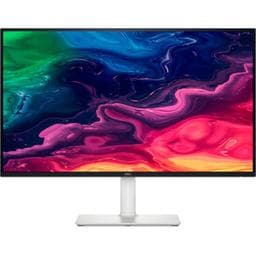
A 27-inch 4K IPS workhorse with a 120Hz refresh rate, USB-C video, and up to 65W of laptop charging. It has no dedicated DisplayPort input.
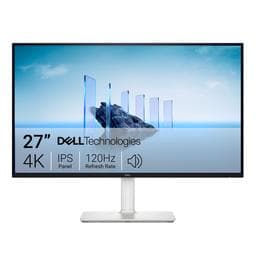
The same 27-inch 4K 120Hz panel basics without USB-C or a USB hub. Price a dock into the total if your laptop needs one.
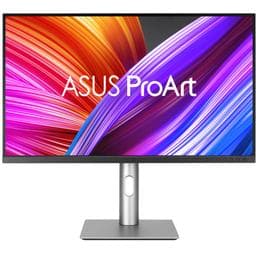
A 27-inch 4K wide-gamut IPS display for photo and SDR design work, with 96W USB-C charging and a 60Hz panel.
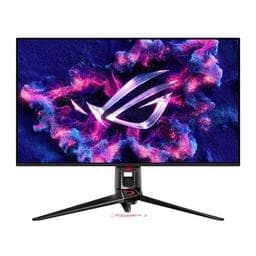
A 31.5-inch 4K 240Hz QD-OLED for gaming and HDR, with DisplayPort 2.1 and a three-year burn-in warranty. It carries a premium price.
Also in this guide:
- Dell U2725QE: Best for professional home offices. 27-inch 4K 120Hz IPS Black with Thunderbolt 4, 140W charging, Ethernet, and KVM. Premium features may be unnecessary for a single-computer desk.
- MSI MPG 274URDFW E16M: Best for gaming and HDR without OLED. 27-inch 4K 160Hz Mini-LED with 1,152 local-dimming zones. Local-dimming halos can appear around bright objects on dark backgrounds.
These picks target different buyers rather than pretending that one display suits everyone. The model names are easy to mix up. The S2725QC and S2725QS share a panel size and resolution but differ in connectivity. The entries above reflect the official port lists rather than the marketing names.
How These Monitors Were Chosen
The selection favors monitors that solve a clear problem rather than monitors that win a specification contest. Each pick had to offer a sensible combination of pixel density, panel behavior, refresh rate, port selection, charging power, and ergonomic adjustment. Where two models were close, the pick favored the one whose limitations are easier to live with.
The evidence comes from manufacturer specification pages for panel type, ports, power delivery, and warranty terms, plus independent reviews for measured performance. RTINGS, for example, tested the S2725QS and confirmed that it has two HDMI 2.1 inputs, one DisplayPort 1.4 input, and no USB port. That kind of port-level confirmation matters more than a product name, because regional product pages are not always consistent.
This is a buying guide, not a lab report. No single monitor here is the best for every room, desk, or workload.
Best Overall 4K Monitor for Everyday Use: Dell S2725QC
The Dell S2725QC combines features that are useful throughout an ordinary working day. Its 27-inch 3840 x 2160 IPS panel provides sharp text and detailed images. Its 120Hz refresh rate makes scrolling, animations, and casual gaming smoother than on a typical 60Hz monitor.
Its strongest advantage is convenience. A USB-C connection supports video, data, and up to 65W of laptop charging, so a compatible laptop can connect and charge through one cable. The monitor also has a pop-up USB hub with USB-A and USB-C downstream ports, which is useful for a flash drive, a webcam, or a phone charger.
Two connectivity details matter before you buy. First, the S2725QC has two HDMI 2.1 inputs and one USB-C input, but no dedicated DisplayPort input. A desktop graphics card that relies on DisplayPort will need an HDMI cable or an adapter. Second, 65W is not enough to meet the maximum power requirements of every laptop. A powerful workstation may charge slowly, discharge under heavy load, or require its own charger.
The monitor also has built-in 5W stereo speakers and a height-adjustable stand that tilts, swivels, and pivots. That makes it a good fit for office work, studying, browsing, media, and casual gaming. It is a sensible all-rounder, but shoppers expecting premium OLED contrast or high-end HDR performance should look elsewhere.
Bottom line: Buy the S2725QC if you want one cable for a laptop and a smooth 4K desktop. Skip it if you need DisplayPort, more than 65W of charging, or serious HDR.
Specifications: Dell S2725QC.
Best Budget 4K Monitor: Dell S2725QS
The Dell S2725QS is worth considering if your main objective is sharp 4K picture quality without paying for a full docking setup.
It offers a 27-inch 4K IPS display with a 120Hz refresh rate, making it suitable for documents, coding, spreadsheets, browsing, and general entertainment. Its adjustable stand and built-in speakers also make it practical for a straightforward desktop setup.
One specification deserves more attention than the price tag.
The Dell S2725QS does not include a USB-C input or a USB hub.
Its official port list shows two HDMI 2.1 inputs and one DisplayPort 1.4 input. That makes it different from the similarly named Dell S2725QC, which provides USB-C video connectivity and up to 65W of power delivery, plus a USB hub.
The model names cause real confusion. Some Dell regional pages put "USB-C" in the S2725QS product name. Some even list a USB-C cable among the accessories, while the port list shows no USB-C input. Online buying guides repeat the mistake. A buyer who expects one-cable laptop charging could end up needing an external dock.
The better-value model therefore depends on what you already own. A desktop computer with HDMI or DisplayPort might work perfectly with the S2725QS. A USB-C-only laptop may make the S2725QC more convenient, even at a higher price.
If you are choosing between them, compare the total cost: S2725QS plus a dock or adapter versus S2725QC with no dock.
Bottom line: Buy the S2725QS for a desktop with HDMI or DisplayPort and no laptop-charging requirement. Skip it if you want one-cable USB-C connectivity.
Sources: Dell S2725QS specifications and RTINGS review.
Best 4K Monitor for Professional Work: Dell U2725QE
The Dell UltraSharp U2725QE is built for a more demanding workspace.
It pairs a 27-inch 4K IPS Black display with a 120Hz refresh rate, but the real distinction is its integrated connectivity. Its Thunderbolt 4 hub supports up to 140W of power delivery, and the monitor provides USB ports, Ethernet, and a built-in KVM switch. Dell rates the IPS Black panel at a 3,000:1 contrast ratio. That is roughly three times the typical contrast of a conventional IPS panel. Dell also specifies 99% DCI-P3 coverage and an average Delta E below 1.5.
That matters when one desk supports multiple computers. Consider someone using a work laptop during the day and a desktop computer in the evening. A KVM-equipped monitor can let both devices share the keyboard, mouse, and other connected peripherals without repeatedly unplugging them.
The U2725QE can also reduce the need for a separate dock. It suits home offices, developers, and business users who need one desk to serve more than one computer. Buyers should confirm that their computer supports the required Thunderbolt capabilities and charging profile, because USB-C and Thunderbolt 4 are not interchangeable.
The IPS Black panel improves native contrast compared with many conventional IPS displays. It is not a substitute for OLED or high-quality Mini-LED when accurate, high-impact HDR is the priority. This is a productivity-focused monitor with an extensive connection system, not primarily a cinematic display.
Bottom line: Buy the U2725QE for a multi-computer desk that needs Thunderbolt 4, high-wattage charging, Ethernet, and KVM. Skip it if you connect one desktop and do not need docking features.
Specifications: Dell U2725QE.
Best 4K Monitor for Photo Editing and Design: ASUS ProArt PA279CRV
A monitor can cover a wide color gamut and still display inaccurate colors. For creative professionals, the critical question is not how many colors a monitor can reproduce, but how reliably it reproduces the intended colors. If photo editing is your main task, our photo editing monitor guide goes deeper on color accuracy and calibration.
The ASUS ProArt PA279CRV is a 27-inch 4K IPS monitor designed for color-oriented workflows. ASUS specifies 99% DCI-P3 and 99% Adobe RGB coverage, a Delta E of less than 2, Calman Verified status, and a factory color pre-calibration report. It also provides multiple color controls and ProArt presets for sRGB, Adobe RGB, DCI-P3, Rec. 709, Rec. 2020, and DICOM.
It supports USB-C connectivity with up to 96W of power delivery, making it practical for a compatible laptop-based editing setup. Two DisplayPort 1.4 inputs support daisy-chaining a second monitor, and there are two HDMI 2.0 inputs as well.
Its main compromise is its 60Hz refresh rate. That is rarely a major disadvantage for still photography, graphic design, and many office tasks, but it makes the monitor less versatile for fast gaming.
There is also a difference between creating SDR content and mastering HDR content. A wide color gamut and HDR signal support do not automatically make a monitor suitable for professional HDR grading. The PA279CRV carries a DisplayHDR 400 rating and a 400-nit peak brightness specification, which are entry-level HDR figures. Sustained brightness, contrast, local dimming, calibration, and uniformity still matter.
If your work requires contract proofing or critical color decisions, plan for an appropriate calibration and validation workflow rather than relying only on factory claims. ASUS backs the panel with a three-year zero bright dot warranty.
Bottom line: Buy the PA279CRV for photo editing, graphic design, and SDR creative work. Skip it if high-refresh gaming or professional HDR mastering is the priority.
Specifications: ASUS ProArt PA279CRV.
Best 4K Mini-LED Monitor for Gaming: MSI MPG 274URDFW E16M
OLED is often promoted as the ultimate display technology for gaming, but it is not necessarily the best choice for someone who also spends long hours working with static applications. The MSI MPG 274URDFW E16M offers an alternative.
It uses a 27-inch 4K Rapid IPS panel with a Quantum Dot layer and Mini-LED backlighting with 1,152 local-dimming zones. It can run at up to 160Hz in 4K or switch to 320Hz at 1080p. That dual-mode feature is useful for gamers who alternate between visually detailed single-player games and competitive shooters. In the 1080p mode, each logical pixel occupies four physical pixels, so the effective pixel density drops to about 81 PPI, similar to a 27-inch 1080p monitor.
The monitor also includes a USB-C connection with up to 98W of power delivery and a KVM switch, adding flexibility for a laptop-and-gaming setup. MSI rates it for DisplayHDR 1000, 98% DCI-P3, and a 0.5ms minimum GtG response time, and it provides two HDMI 2.1 inputs and one DisplayPort 1.4a input.
Mini-LED is not perfect. The backlight is divided into zones rather than controlled at the level of individual pixels. As a result, bright objects against very dark backgrounds can produce halos or blooming. That trade-off matters in games featuring dark environments, subtitles, and small bright interface elements.
Compared with OLED, the MSI avoids OLED's characteristic burn-in risk from prolonged static images, but it cannot deliver the same pixel-level black control.
Bottom line: Buy the MSI for PC gaming with HDR, high refresh rates, and mixed work-and-play use. Skip it if blooming bothers you or you want OLED-level black uniformity.
Sources: MSI MPG 274URDFW E16M specifications and RTINGS review.
Best Premium 4K OLED Gaming Monitor: ASUS ROG Swift OLED PG32UCDM Gen3
The ASUS ROG Swift OLED PG32UCDM Gen3 is a premium option for buyers who prioritize image quality, HDR presentation, and fast response times.
Its 31.5-inch Tandem QD-OLED panel combines 3840 x 2160 resolution with a 240Hz refresh rate. OLED technology allows individual pixels to turn off, producing deep blacks without the backlight halos associated with zone-based LCD displays. ASUS specifies DisplayHDR 500 True Black certification, Dolby Vision support, and a 1,000-nit peak HDR brightness figure.
The monitor also offers DisplayPort 2.1a with UHBR20 and 80Gbps of full bandwidth, plus two HDMI 2.1 inputs and a KVM switch. A three-port USB-A hub and USB-C charging rated up to 90W round out the connections. It includes a BlackShield film that ASUS says improves scratch resistance and perceived black levels. OLED Care Pro and a Neo Proximity Sensor switch the screen to black when you leave your desk.
For gaming, those features make it particularly attractive to owners of powerful desktop computers. But buying a 240Hz 4K monitor does not guarantee that a game will run at 240 frames per second. The graphics card, game engine, graphics settings, and rendering technology all affect achievable performance.
The other major consideration is how the monitor will be used outside gaming. OLED displays can develop permanent image retention, commonly called burn-in, after prolonged exposure to static content. Modern protection features can reduce that risk, but they do not eliminate it. ASUS includes panel burn-in in the monitor's three-year warranty, which lowers the financial risk without changing the underlying behavior.
OLED subpixel structure may also cause visible color fringing around small text on some displays. The extent depends on the panel, pixel density, operating system, and viewing conditions.
For someone gaming most evenings, the trade-offs may be worthwhile. For a user displaying spreadsheets and fixed toolbars eight hours a day, a high-quality IPS monitor could make more sense.
Bottom line: Buy the PG32UCDM Gen3 for enthusiast gaming, HDR entertainment, and OLED contrast. Skip it if your use is mostly static productivity work or your graphics hardware cannot exploit the display.
Specifications: ASUS ROG Swift OLED PG32UCDM Gen3.
27-Inch vs 32-Inch 4K Monitors: Which Gives You More Space?
One of the most misunderstood aspects of 4K monitors is the difference between resolution, screen size, and usable desktop space.
Both a 27-inch and a 32-inch 4K monitor display the same number of pixels: 3840 x 2160, or approximately 8.29 million. What changes is the density of those pixels.
| Screen | Resolution | Approximate pixel density |
|---|---|---|
| 27-inch 1440p | 2560 x 1440 | 109 PPI |
| 27-inch 4K | 3840 x 2160 | 163 PPI |
| 32-inch 4K | 3840 x 2160 | 138 PPI |
A 27-inch 4K screen has more tightly packed pixels, which can make small text and fine image details appear especially sharp. A 32-inch 4K screen spreads the same resolution across a larger area. Text and interface elements are physically larger at the same display-scaling setting, which may be more comfortable when sitting farther away.
Why display scaling changes the decision
At 100% scaling, a 4K desktop provides a large amount of logical workspace, but text and interface elements may be too small for comfortable use.
At 150% scaling, a 3840 x 2160 display offers an effective logical workspace of approximately 2560 x 1440. The additional physical pixels render sharper content.
That means buying a larger 4K monitor does not automatically increase the number of windows you can fit onscreen at the same scaling percentage. The larger monitor mainly changes how physically big those windows appear.
A practical way to decide
Before buying, measure the distance between your eyes and the screen. Then consider how much text you read and whether you prefer larger interface elements or a denser workspace.
If you already have a 27-inch screen, try your normal applications at different scaling settings. If small text frequently causes discomfort, a larger 4K monitor or a higher scaling level may be preferable. If you are weighing a second screen or a wider display instead, our dual monitor vs ultrawide comparison covers the workspace trade-offs.
If you want 32 inches on a tighter budget, the Dell S3225QS is the closest sibling to the S2725QS. It has a 31.5-inch 4K panel at 120Hz, two HDMI 2.1 inputs, one DisplayPort 1.4 input, dual 5W speakers, and a height-adjustable stand. It has no USB-C and uses a VA panel with a 3,000:1 contrast ratio rather than IPS, so contrast is deeper but colors shift more at off-center angles. For a fixed desk used mostly for work and media, that trade-off can be reasonable. For shared viewing or fast gaming, spend more on an IPS or OLED model. If you want more horizontal space than either 27 or 32 inches, our 34-inch ultrawide monitor picks cover that alternative.
Specifications: Dell S3225QS.
Is a 4K 240Hz Monitor Worth It? The GPU Reality Check
High refresh rates are useful, but a monitor can only show new frames as quickly as the connected system delivers them. Consider the difference between 1440p and 4K.
A 2560 x 1440 image contains approximately 3.69 million pixels. A 3840 x 2160 image contains approximately 8.29 million. That means 4K requires processing 2.25 times as many output pixels as 1440p. It does not necessarily mean a game will run 2.25 times slower, but it explains why higher-resolution gaming can place substantially greater demands on the graphics system.
Refresh rates also have measurable timing differences:
| Refresh rate | Time per refresh |
|---|---|
| 60Hz | 16.7 milliseconds |
| 120Hz | 8.3 milliseconds |
| 160Hz | 6.25 milliseconds |
| 240Hz | 4.17 milliseconds |
Moving from 60Hz to 120Hz halves the time between display refreshes. Moving from 120Hz to 240Hz halves it again, but the absolute reduction is smaller. If you want a refresher on what the refresh rate changes in practice, see what refresh rate means.
Whether the improvement is noticeable depends on game performance, response times, and individual sensitivity. Variable refresh rate helps smooth out frame pacing when the frame rate fluctuates, but it cannot create frames the graphics card never rendered.
For a gaming PC that regularly produces around 90-120 FPS at your preferred settings, a good 120Hz or 160Hz monitor may be more cost-effective than a 240Hz model. If 4K at high frame rates is out of reach, our 1440p 144Hz monitor picks are a more practical route. Console gamers should also remember that current PlayStation 5 and Xbox Series X systems support up to 120Hz output in supported games and display modes. A 240Hz monitor will not turn a console's 120Hz output into 240 unique frames. For console-specific picks, see our guides to the best monitor for PS5 and the best monitor for Xbox Series X.
Before upgrading, measure frame rates in the games you actually play. That is more useful than choosing a monitor solely from the refresh-rate number printed on its box.
USB-C, HDMI 2.1, and DisplayPort: Check the Entire Connection
A monitor's advertised capabilities are not necessarily available through every input. This is especially important with laptops and high-refresh 4K displays.
A USB-C connector may support charging, data, video output, or some combination of those features. The connector's physical shape does not guarantee that DisplayPort Alternate Mode or Thunderbolt video is available. Likewise, a monitor offering 4K at 144Hz or higher may depend on specific ports, cable capabilities, or Display Stream Compression.
The five-minute compatibility checklist
Before buying, verify these five details:
- Video output: Does your computer support the monitor's resolution and refresh rate through its intended output?
- Power delivery: Does the monitor supply enough wattage for your laptop under your actual workload?
- USB bandwidth: Can the monitor simultaneously provide the refresh rate and USB data speed you need?
- Cable requirements: Is the supplied cable rated for the required video and power capabilities?
- Peripheral sharing: If you use two computers, does the monitor support the necessary KVM and input-switching behavior?
The combined setup is what matters. For example, someone using a high-power laptop may benefit from the Dell U2725QE's 140W Thunderbolt connection. Someone using a lower-power laptop might find the Dell S2725QC's 65W USB-C connection entirely adequate. And someone using a desktop computer with DisplayPort may prefer the simpler Dell S2725QS.
A useful rule is to treat the cable as part of the monitor. A USB-C cable rated for 60W charging may not carry 4K at 120Hz with USB data at the same time. An HDMI cable bought for a 1080p TV may not support the bandwidth a 4K 120Hz display needs.
OLED vs Mini-LED vs IPS: Why the Brightest Specification Doesn't Always Win
Different display technologies solve different problems.
OLED controls light at the pixel level, which provides excellent black levels and eliminates conventional LCD backlight blooming. That can make a significant difference in dark games, films, and HDR scenes.
Mini-LED LCD displays use many backlight zones to improve contrast and brightness. Strong implementations can produce impressive HDR highlights, particularly in bright environments, but blooming remains possible.
Conventional IPS monitors are often practical for office work, text-heavy tasks, and color-focused applications. However, ordinary IPS panels without effective local dimming generally cannot reproduce the same HDR contrast as OLED or good Mini-LED displays.
The failure case to avoid is treating an HDR-compatible label as evidence of excellent HDR quality. A monitor can accept an HDR signal while delivering limited contrast or modest highlight impact. Advertised peak brightness is also not the same as sustained full-screen brightness.
HDR certifications are a useful shorthand, but they are not a complete description. DisplayHDR 400 is an entry tier; DisplayHDR 1000, which the MSI carries, requires a 1,000-nit peak and local dimming. DisplayHDR 500 True Black, which the ASUS carries, is an OLED-specific tier with a strict black-level requirement. A higher number is not automatically better for your room or your content.
For meaningful comparison, examine independently measured brightness, contrast, local-dimming behavior, and HDR performance rather than relying on one specification.
Match the panel to your environment
In a bright room with many static applications, an IPS monitor may be a sensible long-term choice. In a dark entertainment room, OLED's black levels can be a substantial advantage. For mixed HDR gaming and productivity, Mini-LED may offer a compelling middle ground, provided its blooming behavior is acceptable.
The Hidden Costs of Buying a Cheaper 4K Monitor
The monitor's selling price is only one part of the purchase.
A lower-cost screen without USB-C may require a docking station or adapter. A display with an inadequate stand may need a monitor arm. A model without suitable charging might mean keeping a separate laptop power supply on the desk.
These are not necessarily reasons to avoid an affordable monitor. They are reasons to calculate what the completed setup will cost.
A simple comparison is:
Total setup cost = Monitor price + required dock or adapters + cables + mounting accessories
For example, if you already own a suitable dock, paying extra for a monitor with extensive USB-C connectivity might provide little financial benefit. If you do not own a dock, a USB-C monitor could eliminate an additional purchase.
Also consider longer-term requirements such as warranty coverage, dead-pixel policies, OLED burn-in terms, local repair arrangements, and retailer return conditions. The ASUS ROG Swift's warranty includes panel burn-in. The ProArt PA279CRV includes a three-year zero bright dot guarantee. Policies vary by model and region. Two similarly priced monitors can therefore have different practical costs over their useful lifetimes.
How to Check Whether Your New 4K Monitor Is Actually Right for You
Even a well-reviewed monitor can be a poor match for an individual's desk or computer. A short evaluation during the retailer's return window can reveal problems that specifications cannot fully describe.
1. Check text clarity at your normal viewing distance
Open the applications you use most frequently. Compare small text in your browser, spreadsheet, code editor, or design software. Try different scaling settings and confirm that the image remains comfortable for extended use.
2. Test brightness and reflections in your real room
Inspect the display during the day and at night. A monitor that looks excellent in a dark review environment may show distracting reflections near a window or struggle with your preferred brightness settings.
3. Confirm resolution and refresh rate
Check the actual operating-system output settings. If you purchased a 120Hz or 160Hz monitor, confirm that the connected computer is running at the intended resolution and refresh rate. Check that it is not silently falling back to 60Hz.
4. Test the features you paid extra for
If you bought the monitor for USB-C connectivity, test video, charging, sleep/wake behavior, and connected peripherals. For an HDR gaming monitor, use familiar HDR content and inspect dark scenes, bright highlights, and shadow detail. For a dual-computer setup, switch between devices repeatedly to confirm that the KVM behavior is practical.
5. Check panel consistency and warranty conditions
Look for dead or stuck pixels, obvious uniformity problems, excessive light bleed where applicable, and other defects. Use realistic brightness settings when evaluating the panel. Save your order details, model number, and warranty documentation.
These steps do not replace instrumented laboratory measurements. They can still identify whether the monitor meets your needs.
Frequently Asked Questions
Final Verdict: Which 4K Monitor Should You Buy?
For everyday use, the Dell S2725QC is a strong choice if you want a sharp 27-inch screen, a smooth 120Hz refresh rate, and USB-C laptop connectivity.
Choose the Dell S2725QS when value matters more than docking features, but remember that it does not include USB-C.
The Dell U2725QE is a better fit for a professional desk that needs Thunderbolt connectivity, higher-wattage charging, Ethernet, and shared peripherals. The ASUS ProArt PA279CRV deserves consideration for color-oriented SDR work.
For gaming, the MSI MPG 274URDFW E16M combines high refresh rates with Mini-LED HDR capabilities. The ASUS ROG Swift OLED PG32UCDM Gen3 is the more premium option for OLED contrast and 240Hz gaming.
| If you... | Buy | Why |
|---|---|---|
| Want one cable for a laptop and a smooth 4K desktop | Dell S2725QC | 120Hz, USB-C 65W, sharp 27-inch panel |
| Have a desktop with HDMI or DisplayPort and want to spend less | Dell S2725QS | Same panel size and refresh rate, no USB-C |
| Run two computers and need Thunderbolt, Ethernet, and KVM | Dell U2725QE | 140W charging, KVM, IPS Black |
| Edit photos or design for print and SDR | ASUS ProArt PA279CRV | 99% DCI-P3 and Adobe RGB, Delta E below 2 |
| Want HDR gaming without OLED burn-in risk | MSI MPG 274URDFW E16M | 1,152-zone Mini-LED, 4K 160Hz |
| Want the best OLED motion and HDR | ASUS PG32UCDM Gen3 | 240Hz QD-OLED, DisplayPort 2.1 |
| Want 32 inches on a budget | Dell S3225QS | 31.5-inch 4K 120Hz VA, no USB-C |
The most useful question is not which monitor ranks first. It is which one delivers the capabilities you will use without introducing compromises you did not expect.
Final recommendations:
- Best everyday choice: Dell S2725QC
- Best budget choice: Dell S2725QS
- Best professional office choice: Dell U2725QE
- Best for SDR creative work: ASUS ProArt PA279CRV
- Best Mini-LED gaming choice: MSI MPG 274URDFW E16M
- Best premium OLED gaming choice: ASUS ROG Swift OLED PG32UCDM Gen3
- Best budget 32-inch alternative: Dell S3225QS
Sources
- Dell S2725QC product page
- Dell S2725QS product page
- Dell U2725QE product page
- ASUS ProArt PA279CRV specifications
- MSI MPG 274URDFW E16M specifications
- ASUS ROG Swift OLED PG32UCDM Gen3 specifications
- Dell S3225QS product page
- RTINGS: Dell S2725QS review
- RTINGS: MSI MPG 274URDFW E16M review
All sources retrieved 14 November 2026. Manufacturer specifications describe rated performance; independent reviews describe measured samples and may vary by unit.