Have you hit the limit of a standard 16:9 screen? If you keep minimizing tabs, alt-tabbing between apps, or losing key data behind other windows, it may be time for a workstation upgrade. That leads to the modern tech debate: dual monitor vs ultrawide.
Remote work and gaming have changed how we use our desks. If you are building a home office, a game station, or a creative studio, the choice between dual vs ultrawide is about more than size. Are you after the seamless canvas of an ultrawide display, or the split flexibility of a dual monitor setup? This guide looks at the pros, the cons, and the tech tradeoffs of 2 monitors vs ultrawide. You will learn which layout helps productivity, gaming, and comfort.
The Battle of Screen Real Estate
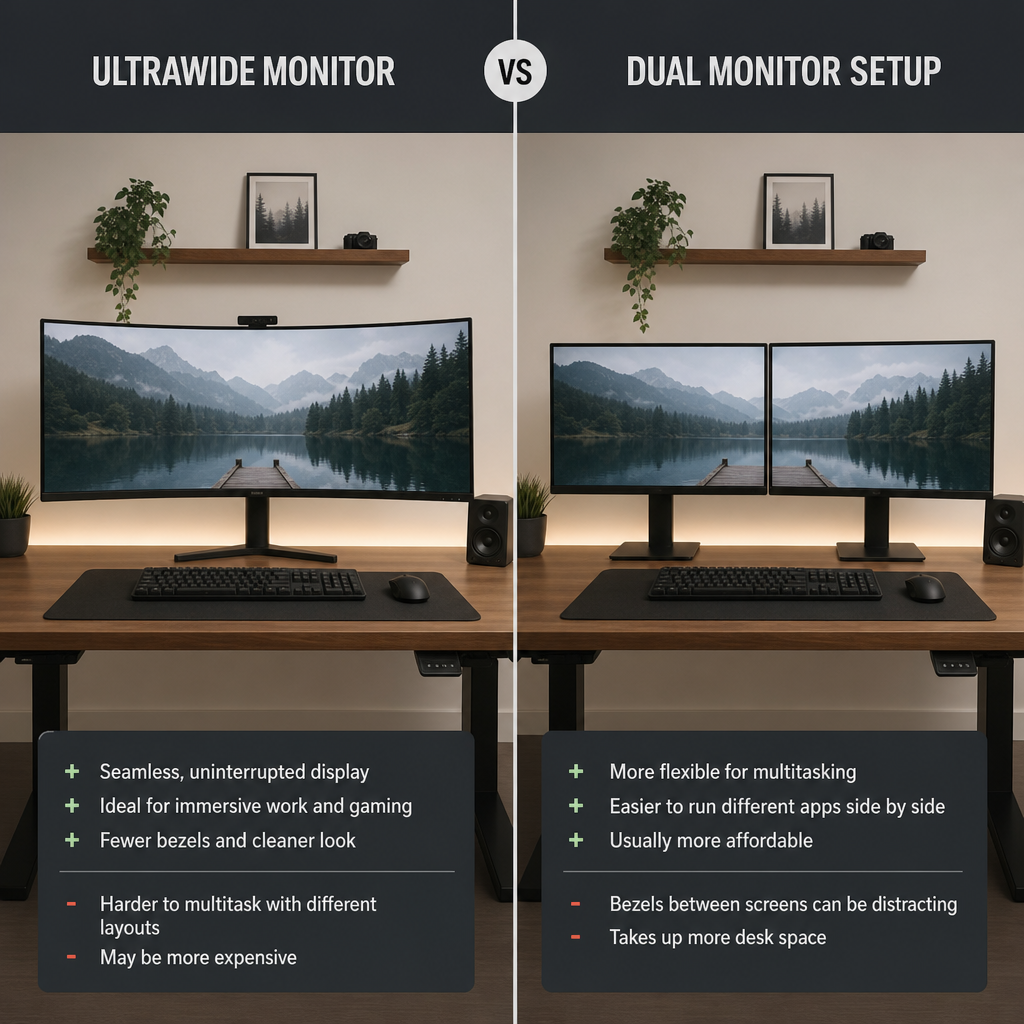
When people compare ultrawide monitor vs dual monitor setups, they are really asking how they want to manage space.
A dual monitor setup usually puts two 16:9 screens side by side. That creates a hard line in the middle, right where your main work often lives. An ultrawide display removes that gap. It gives you a 21:9 or 32:9 panel with one unbroken view. If you need help understanding these aspect ratios, available sizes, resolutions, panel types, and hardware requirements, start with our complete ultrawide monitor guide
A common test is a 34-inch curved screen against two 27-inch monitors. Two 27-inch screens give more total area on paper. If raw space is your top goal, the dual setup wins that math contest. If a single 34-inch screen wins the math, our 34-inch ultrawide roundup lists the top models.
But the ultrawide monitor vs dual monitor choice is not only about pixels. It is also about how useful those pixels feel. The bezel split in a dual screen setup breaks focus. The smooth wide surface of an ultrawide keeps key windows in the center with no hard break.
Productivity and Workflow
Your job and daily habits usually decide the winner in an ultrawide vs dual monitor setup. If office productivity is your main priority, see our recommendations for the best ultrawide monitors for office work
Content Creation and Editing
Video editors, audio engineers, and graphic designers mostly lean toward a single wide panel. The bezel-free view is great for long timelines and multi-track work.
You can stretch a project across the whole screen without a frame in the middle. That makes a long edit feel cleaner and easier to track.
Programming and Data Analysis
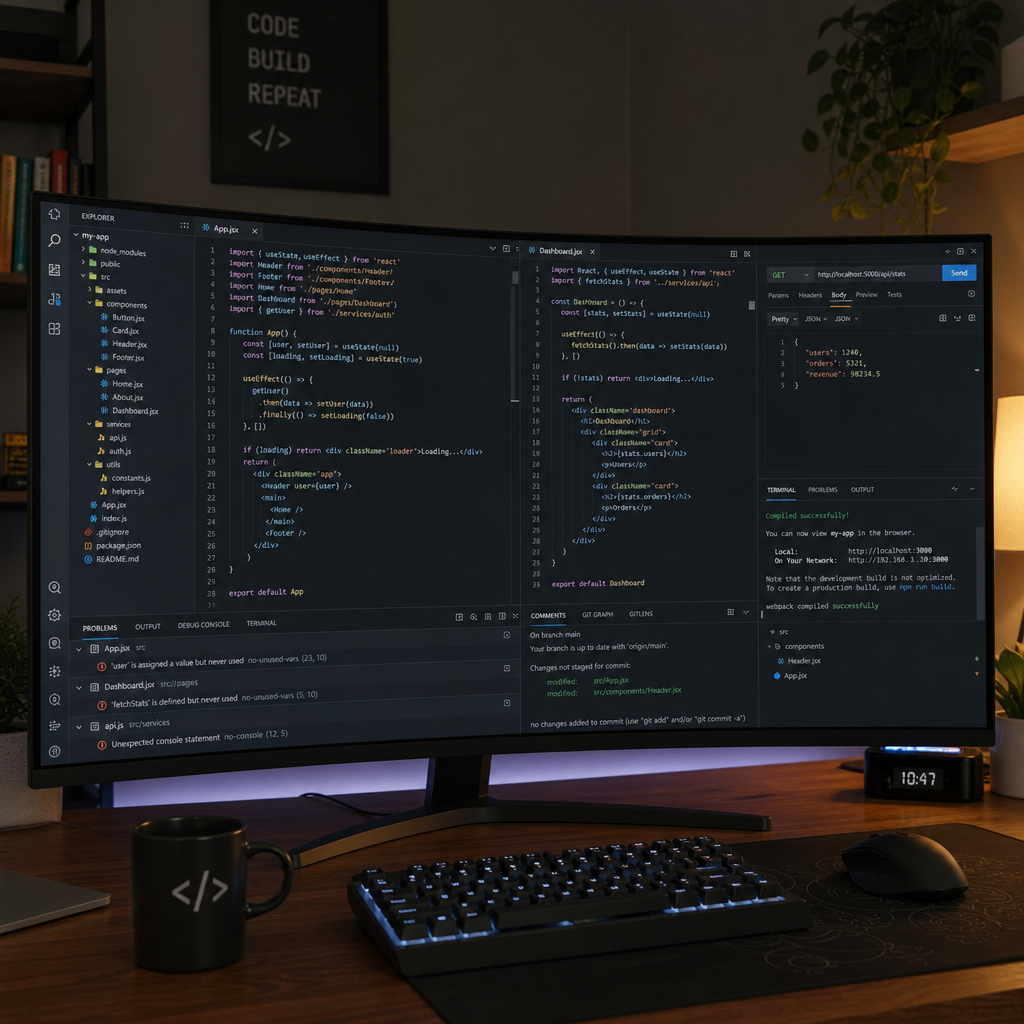
Many developers and analysts like a dual monitor setup with one screen turned vertical for code or docs. The other screen stays horizontal for previews, charts, or live output.
A large ultrawide can still work well if you manage windows well. In the ultrawide vs dual screen debate, this is where smart layout tools can make a big difference.
Window Management Strategies
To make one large panel feel more like two, use Windows 11 Snap Layouts, FancyZones, or Magnet. These tools divide the screen into neat zones without adding a physical bezel.
That is a simple way to get a multi-screen feel on a single ultrawide display. Premium ultrawides also support PBP/PIP, so you can show two computers side by side on one panel.
Visual Cohesion and Technical Challenges
A hidden problem with dual setups is color drift. If you carefully buy two identical monitors, the backlights still age at different rates.
Over time, the same white page may look warmer on one screen than the other. A single ultrawide display avoids that and keeps color even across your whole workspace.
On the tech side, ports and cable links matter. If your laptop only has a few USB-C ports, a dual setup can get messy fast.
You may need DisplayPort or Thunderbolt daisy chaining to run both screens from one machine. An ultrawide often needs just one cable.
You also need enough GPU power. Driving a 4K ultrawide or a dual 4K setup pushes a lot of pixels.
If your graphics card is not strong enough, you can get input lag or lower refresh rates. That gets worse when you try to run two high-res displays at the same time.
Immersive Gaming and Entertainment
If you are building a high-end gaming PC, the debate often favors one big screen.
Gaming across two screens is badly awkward because the bezel sits right where the crosshair or main focus should be. For that reason, most gamers use one screen for play and keep the other for Discord, OBS Studio, or a browser.
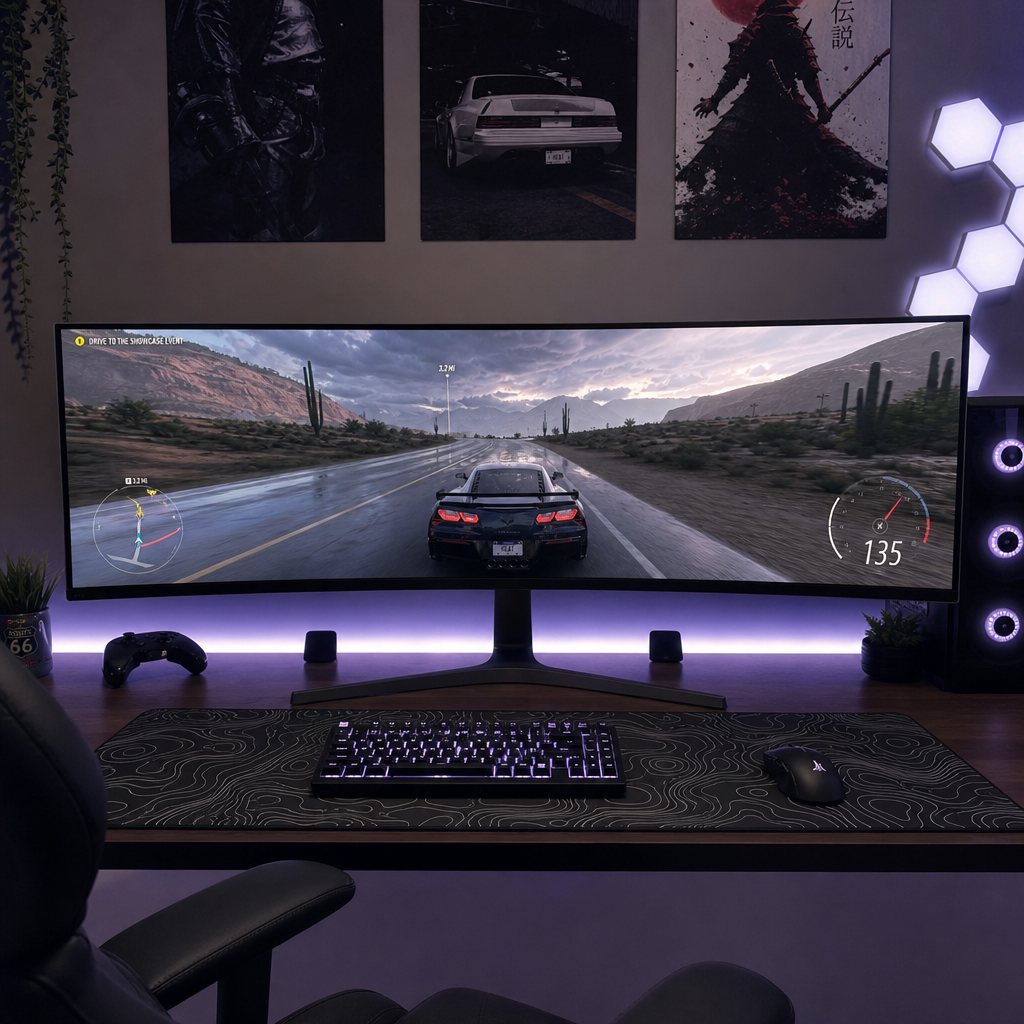
Ultrawides widen your field of view and boost immersion in racing sims, flight sims, and open-world RPGs. A 32:9 super ultrawide gives you the width of two monitors without the center gap.
If you have decided that a single wide display is right for your setup, compare our best ultrawide gaming monitors across 21:9 and 32:9 formats.
Be aware, though. Pushing a 32:9 display needs a top-tier GPU to keep frame rates smooth, and some competitive games turn off ultra-wide support on purpose to avoid unfair FOV gains.
Comfort and Desk Space
For comfort, your long-term health matters a lot when you choose between dual monitor vs ultrawide layouts.
In a side-by-side setup, the center of the desk is often the bezel split. That can force you to look left or right for hours each day.
Over time, that can lead to neck stiffness and shoulder pain. A curved screen keeps the center in front of you and brings the edges closer. That can cut eye strain and reduce repeated neck turning.
Desk space matters too. Two bulky stands can crowd a desk fast. A single heavy-duty gas-spring arm for an ultrawide usually looks cleaner and leaves more open space.
Budget and Value
When carefully comparing a single large screen vs twin monitors, dual setups are usually more budget-friendly.
You can buy two good 27-inch 1440p monitors for less than one premium 34-inch or 49-inch curved ultrawide. That is one reason the classic dual monitor setup still has strong appeal.
Dual also has a modular edge. If one monitor accidentally breaks, you only replace one part.
If an ultrawide fails, your whole workspace is down until the new panel arrives. That risk can matter a lot if you rely on your desk for work every day.
The Final Verdict
Choosing between 2 monitors vs ultrawide depends on your daily tasks, your desk space, and your budget.
- Choose Dual Monitors if: you want separate screens, like a vertical screen for code or docs, or are building a low-cost workstation.
- Choose an Ultrawide if: you want a wide, bezel-free canvas, rely on 21:9 for editing and timeline work, or want deeper game immersion.
Check your workflow, measure your desk, and look at your GPU power before you choose. The best setup is the one that fits how you work and play.