Top Ultrawide Gaming Monitors for 2026
The ultimate PC upgrade isn't just a new graphics card or a faster processor; it is the window through which you view your digital worlds. As we navigate through 2026, the best ultrawide monitors for gaming have solidified their position as the gold standard for players seeking unparalleled visual immersion. From exploring vast, breathtaking open worlds to maintaining peak situational awareness in frantic tactical shooters, upgrading your display can fundamentally transform how you experience your favorite titles.
Standard 16:9 displays have served us well for decades, but the gaming industry is moving toward wider, more cinematic formats. If you are building a new battle station or upgrading an old one, here is everything you need to know about choosing and optimizing an ultrawide display.
Why Upgrade to an Ultrawide Display?
For years, power users and gamers alike relied on stringing multiple monitors together. However, when evaluating an ultrawide vs dual monitor setup for gaming, the single, seamless panel of an ultrawide display easily emerges as the superior choice. Dual monitors suffer from the inevitable, distracting plastic bezel cutting directly through the center of your vision. While fine for data entry or typing, a bezel right where your crosshair should be makes dual-screen gaming virtually impossible for most genres. An ultrawide solves this by providing massive, uninterrupted screen real estate.
One of the most compelling reasons to make the switch lies in the benefits of 21:9 aspect ratio in immersive gaming. By expanding your horizontal field of vision, these monitors fill your peripheral sightlines, mimicking human vision much closer than standard monitors. You aren't just looking at a flat window into a virtual environment; you are enveloped by it.
This added width is particularly noticeable and beneficial in specific genres. Simulation enthusiasts constantly praise the field of view advantages in racing simulators and flight programs. Being able to physically look out of the side windows of your vehicle to check your mirrors or gauge a sharp apex turn feels incredibly natural. It not only increases immersion but can dramatically improve your lap times and overall spatial awareness.
Beyond the realm of gaming, we cannot ignore the sheer multitasking advantages of ultrawide screens for gamers. Whether you are a content creator streaming on Twitch and need to keep an eye on your chat, OBS software, and audio mixers simultaneously, or you are a casual player who likes having Discord and a game wiki open next to your active window, the extra horizontal space acts like a massive digital canvas.
Finding the Best Gaming Displays for Your Setup
Selecting the perfect screen requires a careful balancing act between your budget, preferred panel technology, and the physical constraints of your gaming desk. Here is a breakdown of the best ultrawide gaming monitors dominating the high-end and budget markets in 2026.
1. The Premium Performer: Next-Gen QD-OLED
When discussing pure visual fidelity, the debate of QD-OLED vs IPS panel for gaming performance has largely been settled in favor of OLED technologies for high-end enthusiasts. Modern Quantum Dot OLED (QD-OLED) ultrawides deliver infinite contrast ratios, where blacks are completely unlit, creating a picture with stunning depth. Furthermore, they boast instantaneous pixel response times (often 0.03ms), virtually eliminating motion blur and ghosting.
- Pros: Perfect black levels, hyper-fast pixel response, breathtaking HDR color volume, and zero backlight bleed.
- Cons: Higher prices and a remaining possibility of permanent image retention. Modern panel-care features reduce the risk, but users who display static desktop elements for long periods should still consider an IPS or Mini-LED alternative.

Best Overall: MSI MPG 341CQR QD-OLED X36
The MSI MPG 341CQR QD-OLED X36 is the strongest all-round ultrawide gaming monitor in this list. Its 34-inch, 1800R QD-OLED panel combines the familiar 3440 x 1440 sweet-spot resolution with a 360Hz refresh rate and 0.03ms quoted response time. That makes it equally suited to cinematic single-player games and fast competitive titles, provided your GPU can generate enough frames to exploit it. MSI's fifth-generation panel uses an RGB-stripe subpixel layout, improving text clarity compared with earlier QD-OLED generations. DisplayHDR True Black 500, HDMI 2.1, DisplayPort 2.1a, USB-C with 98W Power Delivery, KVM support, and a three-year warranty that includes panel burn-in complete an unusually well-rounded package.
As an Amazon Associate we earn from qualifying purchases.
Product specifications
- Screen Size
- 34"
- Resolution
- 3440 x 1440
- Refresh Rate
- 144 Hz
- Frame Sync
- FreeSync
- Panel Type
- VA
2. The Value Champion: High-Refresh IPS
Not everyone wants or needs to spend a premium on OLED technology. There are still numerous capable and affordable 1440p ultrawide displays for gaming. IPS (In-Plane Switching) panels offer strong color reproduction, wide viewing angles, and refresh rates commonly ranging from 144Hz to 180Hz in this format. These monitors are resilient workhorses for gaming and daily productivity, without the burn-in considerations associated with OLED.

Best Affordable IPS Ultrawide: Gigabyte M34WQ
The Gigabyte M34WQ remains an excellent lower-cost choice for gamers who also work from the same screen. Its flat 34-inch IPS panel runs at 3440 x 1440 and 144Hz, while a built-in KVM switch allows one keyboard and mouse to control two connected computers. USB-C, Picture-in-Picture, and Picture-by-Picture further strengthen its productivity credentials. The flat panel is useful for design and office work, although it does not create the same wrap-around feeling as a curved model. Its DisplayHDR 400 badge denotes basic HDR compatibility; the lack of OLED pixels or a sophisticated local-dimming backlight means it should primarily be judged as a strong SDR monitor.
As an Amazon Associate we earn from qualifying purchases.
Product specifications
- Screen Size
- 34"
- Resolution
- 3440 x 1440
- Refresh Rate
- 144 Hz
- Frame Sync
- FreeSync Premium
- Panel Type
- IPS
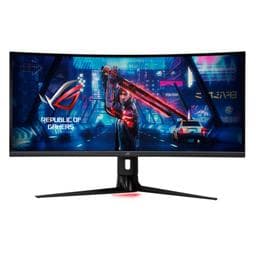
Best Curved IPS Alternative: ASUS ROG Strix XG349C
Buyers who prefer an IPS display but still want a curved screen should consider the ASUS ROG Strix XG349C. It combines a 34-inch 1900R Fast IPS panel with 3440 x 1440 resolution, an overclocked 180Hz refresh rate, 1ms quoted response time, G-SYNC compatibility, a KVM switch, and wide DCI-P3 color coverage. Its gentle curve and responsive panel make it a convincing gaming-and-productivity compromise. However, DisplayHDR 400 offers only entry-level HDR, and the USB-C port supplies just 18W. Compare its current street price carefully, because discounted OLED monitors may sometimes cost only slightly more.
As an Amazon Associate we earn from qualifying purchases.
Product specifications
- Screen Size
- 34.14"
- Resolution
- 3440 x 1440
- Refresh Rate
- 180 Hz
- Frame Sync
- G-Sync Compatible
- Panel Type
- IPS
3. The Behemoth: The 32:9 Super Ultrawide
For those who believe there is no such thing as "too much screen," you must consider the super ultrawide 32:9 vs standard 21:9 comparison. A 32:9 monitor (typically 49 inches diagonally) is exactly the equivalent of two 27-inch 16:9 monitors fused together seamlessly. While standard 21:9 is often considered the "sweet spot" due to its near-universal game compatibility and manageable physical footprint, 32:9 displays provide a level of panoramic immersion that borders on virtual reality. However, UI elements can be pushed to the extreme edges of your vision, and you must ensure you have a desk deep and sturdy enough to support these massive, heavy screens.
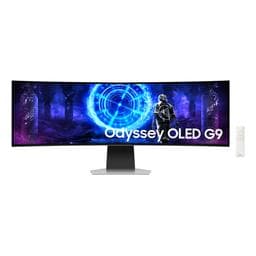
Best 49-Inch Super Ultrawide: Samsung Odyssey OLED G9 G95SD
The Samsung Odyssey OLED G9 G95SD is the natural showcase model for 32:9 gaming. Its 49-inch OLED panel combines a 5120 x 1440 Dual QHD resolution with a 240Hz refresh rate and 0.03ms quoted response time. The screen is effectively equivalent to two 27-inch 1440p monitors placed side by side, but without a bezel between them. Deep OLED blacks, rapid motion handling, a glare-reducing finish, and G-SYNC compatibility make it particularly compelling for racing, flight simulation, and expansive single-player games. Its drawbacks are the possibility of burn-in, inconsistent 32:9 support across games, and menus or HUD elements that may sit uncomfortably far toward the screen edges.
As an Amazon Associate we earn from qualifying purchases.
Product specifications
- Panel Type
- QD-OLED
- Resolution
- 5120 x 1440
- Refresh Rate
- 240 Hz
- Inputs
- 1 x DisplayPort 1.4, 1 x HDMI 2.1, 1 x Micro-HDMI 2.1
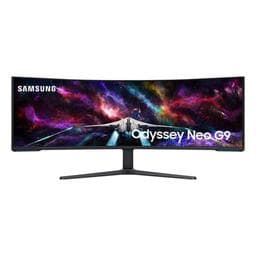
Ultimate HDR Ultrawide: Samsung Odyssey Neo G9 57 G95NC
The Samsung Odyssey Neo G9 57 G95NC is the extreme alternative for users who want OLED-rivaling impact without OLED burn-in. Its 57-inch, 1000R Mini-LED screen has a 7680 x 2160 Dual UHD resolution the equivalent of two 32-inch 4K displays and can refresh at up to 240Hz through a compatible DisplayPort 2.1 connection. VESA DisplayHDR 1000 enables far brighter highlights than entry-level HDR monitors, while Mini-LED local dimming improves black levels substantially compared with conventional LCDs. It cannot completely eliminate blooming around bright objects on dark backgrounds, and its 16.6 million pixels create an extraordinary GPU workload. Physical size, weight, connectivity, and graphics-card support should all be checked before purchase.
As an Amazon Associate we earn from qualifying purchases.
Product specifications
- Panel Type
- VA
- Resolution
- 7680 x 2160
- Refresh Rate
- 240 Hz
- Inputs
- 3 x HDMI 2.1, 1 x DisplayPort 2.1
Hardware Considerations: Powering the Extra Pixels
Upgrading your monitor is only half the battle. Pushing millions of extra pixels requires serious graphical muscle from your PC, alongside the right connectivity.
Resolution and Performance Impacts
Many modern 21:9 ultrawides run at a resolution of 3440 x 1440. It is vital to understand the 1440p WQHD resolution gaming performance impacts before making a purchase. This resolution pushes approximately 35% more pixels than a standard 16:9 1440p display (2560 x 1440), so frame rates will naturally be lower when other settings remain equal.
The premium market now extends well beyond that resolution. The LG 39GX950B's 5120 x 2160 panel renders approximately 11.1 million pixels, while the Samsung Neo G9 57 renders approximately 16.6 million. By comparison, 3440 x 1440 contains just under 5 million pixels. Buyers considering these high-resolution models should treat GPU capability and supported display connections as core purchasing criteria.
Graphical Muscle Requirements
To maintain a smooth 60+ FPS at high settings in modern AAA games, you must consider the GPU requirements for ultrawide gaming. A capable midrange GPU can handle many games at 3440 x 1440, especially with optimized settings, but 5K2K and Dual UHD displays require considerably more graphics power. Technologies such as NVIDIA DLSS, AMD FSR, and Intel XeSS can improve performance by reconstructing a higher-resolution image from a lower internal rendering resolution. Maximizing a 165Hz, 240Hz, or 360Hz panel in demanding games will generally require a high-end GPU or reduced graphics settings; the monitor's maximum refresh rate is a ceiling, not a frame-rate requirement.
The Importance of True HDR
High Dynamic Range (HDR) can make dark scenes more detailed and bright highlights appear far more impactful, but no single brightness figure defines a good HDR monitor. Display technology and dimming control matter just as much.
OLED models such as the MSI MPG 341CQR and LG 39GX950B carry DisplayHDR True Black 500 certification and can turn off individual pixels, producing excellent contrast even though their full-screen brightness is below that of a Mini-LED monitor. The Samsung Neo G9 57 instead combines a much higher DisplayHDR 1000 brightness class with many Mini-LED dimming zones. Budget edge-lit LCD monitors carrying an ordinary DisplayHDR 400 badge usually lack the contrast or local dimming needed for similarly dramatic HDR. When comparing monitors, examine the certification type, dimming system, peak brightness, color gamut, and independent test results together.
Smooth Gameplay with Adaptive Sync
Screen tearing can instantly ruin an otherwise immersive experience. Variable-refresh-rate support is common on modern gaming monitors, but certification and supported refresh ranges still differ by model and connection. Whether you use an NVIDIA, AMD, or Intel graphics card, confirm that the monitor and chosen HDMI or DisplayPort connection support adaptive sync at the resolution and refresh rate you intend to use. This technology synchronizes the display's refresh cycle with the GPU's frame output, reducing tearing and judder when performance fluctuates.
Ergonomics, Setup, and Practical Adjustments
An ultrawide monitor commands a significant physical presence on your desk. Proper setup and configuration are key to long-term comfort and optimal visual fidelity.
Finding the Perfect Screen Curve
On a very wide flat monitor, the outer edges sit farther from your eyes than the center. A curve can make the viewing distance more consistent across the panel, although the most comfortable radius depends on monitor size, desk depth, viewing distance, and whether you also perform precision design work. There is no universal optimal screen curvature for ultrawide gaming setups.
- 1900R to 1800R: A gentle curve, represented by monitors such as the ASUS XG349C and MSI MPG 341CQR. It suits users who divide their time between productivity and gaming.
- 1500R: A moderate curve that pulls the outer edges closer without heavily distorting the appearance of straight lines. The 39-inch LG 39GX950B uses this approach.
- 1000R and below: An aggressive curve intended for large screens, close viewing distances, and simulation rigs. The 57-inch Samsung Neo G9 uses 1000R. This style can feel overwhelming during ordinary desktop work, so it is best experienced in person before purchase.
Desk Space and Mounting
Because of their size and aggressive curves, ultrawide monitor stands are notoriously massive, often eating up half your desk space. To regain this real estate, consider purchasing a heavy-duty, VESA-compatible monitor arm. Just ensure the arm is specifically rated to hold the weight of an ultrawide display, as standard arms will quickly sag under the pressure.
Software Tweaks and Competitive Realities
Once you have your massive new monitor plugged in, you might encounter a few software hurdles. Here is how to fine-tune your games and settings for the best possible user experience.
Is Ultrawide Viable for Esports?
A highly debated question among hardcore esports enthusiasts is: is an ultrawide monitor worth it for competitive play? The answer is incredibly nuanced and depends on your game of choice. The wider 21:9 field of view technically allows you to spot flanking enemies fractions of a second earlier in battle royale games.
However, there is a distinct physical tradeoff. The wider the screen, the further your eyes must physically dart to check crucial UI elements like the minimap, health bars, or ammo counts nestled in the extreme corners. Because of this, many professional competitive players stick to smaller 24-inch or 27-inch 16:9 monitors to keep all critical information within their central, focused vision. But for the vast majority of ranked climbers and casual competitive players, the added peripheral vision and sheer enjoyment are a net positive.
Fixing the Dreaded Black Bars
While native ultrawide support is the industry standard for new releases in 2026, some older titles, indie games, or heavily restricted competitive shooters will force black bars on the left and right sides of your screen. If you are frustrated and wondering how to fix black bars on ultrawide displays, you have a few reliable options:
- Community Mods and Hex Edits: The PC gaming community is incredibly resourceful. Websites like the Widescreen Gaming Forum (WSGF) offer specific mods, customized files, and simple hex edits to force 21:9 support into older, unsupported games.
- Flawless Widescreen: This is a popular third-party software utility that runs in the background. It injects code into games in real-time to remove black bars, correct field of view (FOV) scaling issues, and fix stretched HUDs.
- GPU Scaling Settings: If a game simply cannot be forced into 21:9, you must manage how the black bars appear. In your graphics control panel, ensure your display scaling is set to "Aspect Ratio" rather than "Full Screen." This guarantees the game maintains its native 16:9 shape with crisp black borders, preventing the image from stretching horribly across your ultrawide panel.
Dialing in Perfect Color Accuracy
Out of the box, many gaming monitors ship with an oversaturated, highly stylized "gamer" color profile. This is designed to look punchy and vibrant under bright retail store lights, but it is rarely accurate to the game developer's original vision. Taking the time to learn how to calibrate ultrawide monitor for color accuracy is a vital final step in your setup process.
- Hardware Calibration: The most objectively accurate method involves purchasing or renting a colorimeter. This hardware device physically hangs over your screen, reads the color outputs, and automatically generates a custom ICC profile tailored to your specific panel's quirks.
- OSD Adjustments: If you do not want to buy extra hardware, you can achieve excellent results manually. Access your monitor's On-Screen Display (OSD). Drop the brightness to a comfortable room level (typically around 120 to 150 nits for standard SDR viewing). Set the color temperature to "Warm" or 6500K. Finally, look up professional, in-depth reviews of your specific monitor model—reviewers often post their optimized RGB slider settings, which can get you 90% of the way to professional accuracy for free.
Conclusion
Making the jump to an ultrawide monitor is typically a one-way street; once you experience the expansive vistas, the cinematic wrap-around effect, and the seamless immersion, returning to a standard 16:9 screen feels distinctly restrictive. By carefully considering your GPU's capabilities, choosing the right panel technology for your budget, and taking the time to dial in your physical ergonomics and software settings, you can completely revolutionize your battle station. Whether you are climbing the competitive ranked ladder, managing a complex streaming workflow, or simply losing yourself in a sprawling, beautiful RPG, a 21:9 or 32:9 display remains one of the most impactful hardware investments you can make in 2026.